


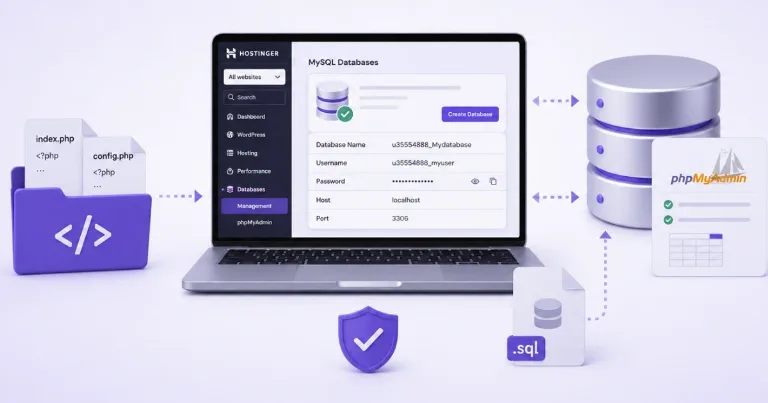

If your PHP script is uploaded but still shows a database error, the database is usually the missing part. On Hostinger, create the MySQL database, save the full database name and username with the prefix, import the SQL file if your script has one, then add those details to the script config.

Hostinger has provided fast, reliable hosting since 2004 and is easy to set up.
Get 20% off using the link below.
Get 20% off at HostingerCreate the database and copy the full details
In Hostinger, open Websites, choose your site, then open the site dashboard. In the left menu, go to Databases and open Management.
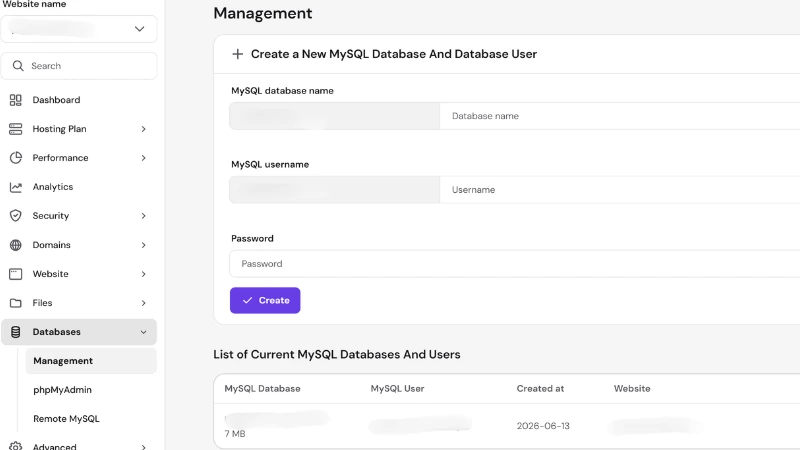
Create a new MySQL database. Hostinger will ask for:
- MySQL database name
- MySQL username
- Password
Use the password generator if you want a strong password, then save the password somewhere safe. You will need it when the script asks for database details.
The full database name is very important. If Hostinger shows u35554888_Mydatabase, do not type only Mydatabase. Use the full name with the Hostinger prefix.
The same idea applies to the MySQL username. Your saved details may look like this:
- Database name:
u35554888_Mydatabase - Database username:
u35554888_myuser - Database password:
YourGeneratedPassword - Database host:
localhost - Database port:
3306
For a PHP script hosted on the same Hostinger account, the database host is usually localhost. Hostinger uses port 3306 for MySQL. Remote database connections are different, so use Remote MySQL only if another app outside Hostinger needs access.
Import the SQL file before testing the script
Upload your PHP script files through Hostinger File Manager. For most basic scripts, the files go inside public_html. If you want the script inside a subfolder, create something like public_html/app, then the script opens at yourdomain.com/app.
Check the script documentation before uploading everything. Some scripts keep the real website files inside another folder. Laravel scripts also need extra care because they use a public folder structure.
Many PHP scripts include a file ending in .sql. That file creates the database tables for users, admins, settings, orders, products, or whatever the script needs.
To import it:
- Open phpMyAdmin in Hostinger.
- Select the database you created.
- Click Import.
- Choose the
.sqlfile. - Start the import.
If the import works, you should see tables inside the database. If your script has no .sql file, check its documentation because some installers create the tables during setup.
If the file is too large
If phpMyAdmin refuses the import or File Manager fails while extracting a large ZIP file, use SSH instead. Hostinger's database import docs say phpMyAdmin uploads can hit size limits, so SSH is better for larger database files.
After connecting through SSH, go to the folder where the file is uploaded and run the import or unzip command from there. The database details stay the same. Only the upload or import method changes.
Connect the script to MySQL
Open the file where your script keeps database settings. Common places are .env, config.php, database.php, db.php, or a browser installer page.
If your script uses a .env file, the database section may look like this:
DB_CONNECTION=mysql
DB_HOST=localhost
DB_PORT=3306
DB_DATABASE=u35554888_Mydatabase
DB_USERNAME=u35554888_myuser
DB_PASSWORD=YourGeneratedPassword
Replace the example details with the real details from Hostinger.
In a .env file, avoid spaces around the equals sign. DB_HOST=localhost is correct. DB_HOST = localhost can break some scripts.
Some scripts use a PHP config file instead. It may look like this:
$db_host = "localhost";
$db_name = "u35554888_Mydatabase";
$db_user = "u35554888_myuser";
$db_pass = "YourGeneratedPassword";
If your script has a browser installer, open your domain and enter the same database details when it asks.
After installation, remove the install folder if the script tells you to. Leaving it online can create a security risk.
Check these if the connection fails
If the script still cannot connect to MySQL, check these first:
- The database name includes the full Hostinger prefix.
- The MySQL username includes the full Hostinger prefix.
- The password was copied correctly.
- The SQL file was imported into the correct database.
- The database details were added to the correct config file.
- The PHP version matches the script requirements.
The most common mistake is using the short database name. Mydatabase is not enough if Hostinger created u35554888_Mydatabase.
If the homepage loads and the admin login works, the PHP script is connected to the Hostinger database.