
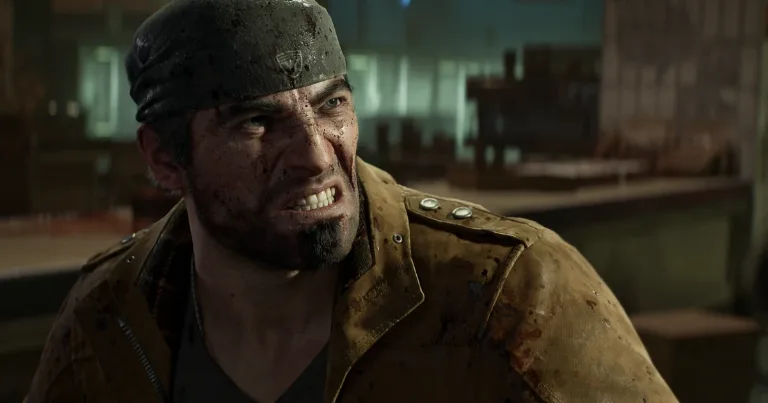

If Gears of War: E-Day gets stuck on "Fetching Data, Info May Be Out of Date," you may be unable to access multiplayer or other online modes. One workaround that has helped Steam players is resetting the game's local files.
How to Fix the Fetching Data Error on Steam
Follow these steps on your Windows PC:
Close Gears of War: E-Day completely. Make sure the game is no longer running.
Press Windows + R to open the Run window.
Enter the following path and press Enter:
%LOCALAPPDATA%\MicrosoftFind the Gears of War E-Day folder. Make sure you select the game's folder, not the entire Microsoft folder.
Make a backup. Copy the game's folder somewhere safe, such as your Desktop.
Rename the original folder by adding
.backupto the end of its name.Launch the game again through Steam. The game should create fresh local files.
Once you're at the main menu, check whether the Fetching Data message disappears and you can access online modes again.
This workaround has resolved the problem for some players, although it may not work for everyone. Some players have also reported that the error returned later.
Important: Keep your backup until you've checked your game progress. If Steam asks you to choose between local and cloud saves, check which Steam Cloud save to keep before selecting anything.
What If the Error Is Still There?
If resetting the local folder doesn't help, the problem may be related to online services or your connection rather than the files stored on your PC.
Try these additional steps:
Check the game servers. Visit the official Gears of War service status page to check for reported problems. A server outage cannot be fixed by changing local files.
Disable your VPN temporarily. If you're using one, disconnect and restart the game to check whether it affects online connectivity.
Join your friend's session instead. If the problem only happens when starting co-op, try having your friend host the session.
Verify the game files on Steam. Open your Steam Library, right-click Gears of War: E-Day, select Properties, then Installed Files, and choose Verify integrity of game files.
If none of these steps works, visit Gears of War Support for further help. Include the exact error message, your platform, and the troubleshooting steps you've already tried.
Why Does Gears of War: E-Day Get Stuck on Fetching Data?
The message appears when the game cannot retrieve the online information it needs. You might reach the main menu but remain unable to start multiplayer matches or access certain online features.
There isn't one confirmed cause for every case. Some players have recovered access after rebuilding their local game files, while others have encountered the same message during online service disruptions.
If multiple players are experiencing the problem at the same time, it may be worth checking for a service outage before making more changes to your PC.
The local folder workaround is intended for the Steam version on Windows. Xbox consoles and PC Game Pass installations use different storage locations, so don't apply these folder instructions to those versions.