
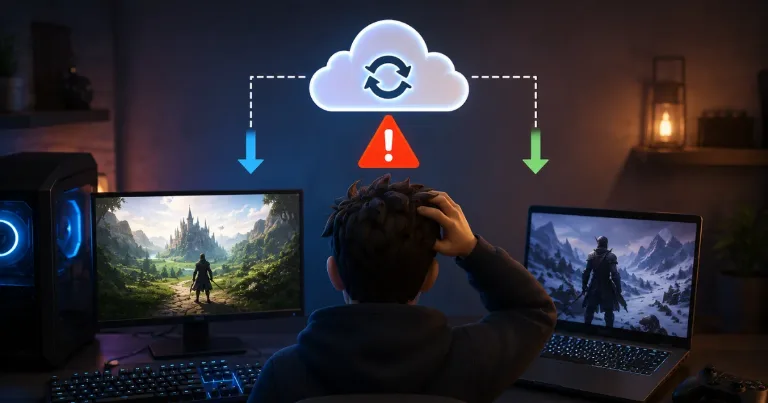

If Steam shows a Cloud Conflict, choose the save that has your newest real progress. Pick Local Save if you last played on this PC. Pick Cloud Save if your latest progress came from another PC, Steam Deck, or a reinstall. If you are not sure, stop and back up the local save first.
Steam Cloud is meant to keep supported game saves synced across devices, but it can get confused when two versions do not match. That usually happens after playing offline, switching devices, closing Steam before syncing finishes, or launching a game before the cloud save is fully updated.
Local or Cloud: Which Save Should You Keep
Start by asking where your newest progress actually is.
- Pick Local Save if your latest progress is on this PC.
- Pick Cloud Save if your latest progress is from another device.
- Trust the newer timestamp only if your device clock is correct.
- Back up first if the save matters and you are unsure.
Steam makes this scarier than it needs to be because the buttons often describe the action, not the save you want to protect.
If Steam says Download to this machine, it usually means Steam will copy the cloud save onto your PC and may replace the local file.
If Steam says Upload to Steam Cloud, it usually means Steam will use the save on this PC and replace the cloud version.
So the real question is not just "local or cloud?" It is: which save do you want Steam to keep?
Back Up Before You Click
If the game save matters, do this before choosing anything:
- Find the game's local save folder.
- Copy the save folder somewhere safe, like Desktop or Documents.
- Go back to Steam and choose the save that looks correct.
- Launch the game and check your progress.
- If it loaded the wrong save, close the game and restore your backup.
This step matters because Steam Support says it cannot recover lost saves or fix cloud conflicts for you. Once the wrong save overwrites the right one, getting that progress back can be difficult.
The save location depends on the game. Some games use Documents, Saved Games, AppData, the Steam install folder, or their own folder. If you do not know where the save is, search the game name plus "save file location" before clicking.
Why Steam Cloud Conflicts Happen
A Steam Cloud Conflict usually means Steam has two different save versions and needs you to choose which one wins.
Common causes include:
- Playing the same game on two devices
- Playing offline
- Closing Steam before cloud sync finishes
- Using Steam Deck and PC back and forth
- Reinstalling Steam or Windows
- A game crash during saving
- Steam Cloud being disabled on one device
Do not assume Cloud Save is always safer. Cloud only means the save stored online. If your last session never uploaded, the cloud version may be older.
Local Save is not always safer either. If you just installed the game on a new PC, the local file may be empty or outdated. In that case, the cloud version may have the progress you want.
Also, this is different from verifying game files. Verifying checks the installed game files, not which Steam Cloud save you choose. I covered that separately here: what happens when you verify Steam game files.
The safest answer is simple: keep the save with your latest real progress. If you last played on this PC, choose Local. If your newest save came from another device, choose Cloud. If you are even slightly unsure, back up the local save first.