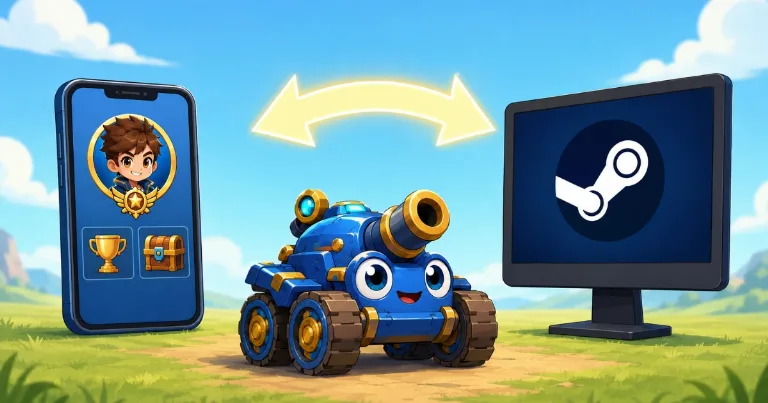
GunboundM does not show a normal mobile login when you first open the game on Steam. It creates a fresh beginner profile instead, then gives you a code to connect your existing mobile account.
To check the process, I created a new Steam account and opened GunboundM. The game started the tutorial, but once the bot match loaded, I opened Settings and quit the match. This let me reach the account menu without completing the full tutorial.
Before linking the accounts, take a screenshot of your mobile profile showing your player name, unique ID and rank. Keep it as a backup in case you choose the wrong profile and need DargomStudio to find your original account.
How to Link Your Mobile Account to Steam
Open GunboundM through Steam. When the tutorial bot match starts, open Settings and leave the match.
From the main menu, open Settings, then select the Account tab.
Click the Steam linking option. GunboundM will show a six-digit verification code that remains active for about five minutes.
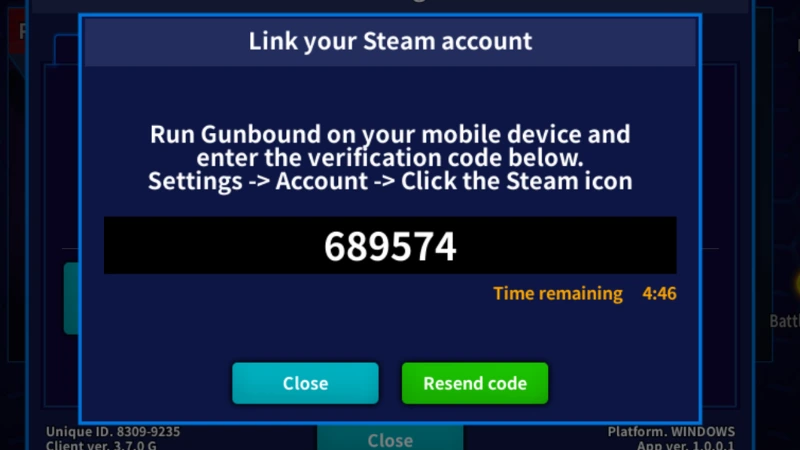
Keep that screen open. On your phone, open GunboundM using the account that already contains your rank, mobiles, avatars and other progress.
On the mobile version, go to:
Settings > Account > Steam icon
Enter the six-digit code shown on your computer.
The code connects your mobile profile to the Steam login. It does not automatically mean the empty Steam profile will replace your mobile progress.
After entering the code, GunboundM shows both profiles and asks which account you want to keep. You should see your established mobile account and the fresh Steam account.
Choose the profile showing your real mobile name, rank and progress.
Check the rank, mobiles, avatars and items before confirming. Do not choose the new profile only because it shows your Steam name.
Once the connection is complete, close GunboundM on Steam and open it again. Your mobile account should now appear on the PC version.
If You Selected the Empty Steam Profile
Do not keep repeating the linking process. More changes may make the missing account harder to recover.
Collect any details that can help DargomStudio identify your original profile:
Original player ID
Previous player name and rank
Guild name
Old screenshots
Purchase receipts
New Steam profile ID
Approximate time the wrong profile was selected
Contact DargomStudio through its official Steam support listing at:
help@dargomstudio.com
Use a clear subject line such as:
GunboundM account replaced during Steam linking
Explain that you selected the fresh Steam profile instead of your established mobile account. Include the original player ID and any screenshots showing your previous progress.
DargomStudio may be able to restore the account when given the correct information, but recovery is not guaranteed.
The safe order is simple: create the code on Steam, enter it from your established mobile account and keep the profile showing your real progress. Check the player name and rank carefully before confirming.