
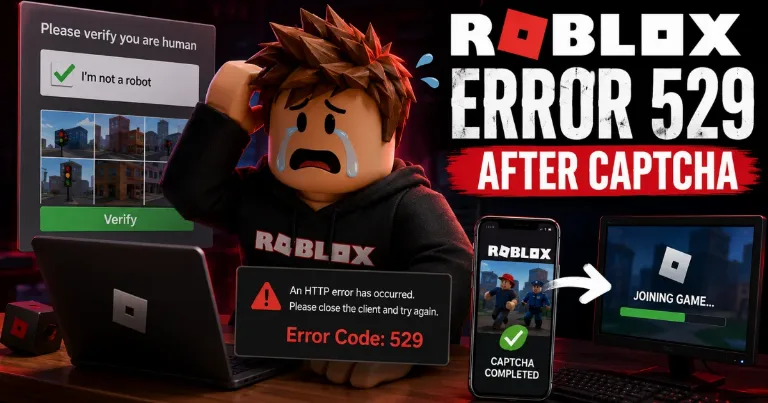

I had this same Roblox Error 529 after CAPTCHA problem: the CAPTCHA finished, but Roblox still refused to join the game. Since Roblox has not confirmed one CAPTCHA-only cause, I treated it like a stuck verification or game-join session. What worked for me, and what many players said helped too, was opening Roblox on mobile, joining a game there, completing the CAPTCHA, then going back to PC.
The error can say, “An HTTP error has occurred. Please close the client and try again. Error Code: 529.” If you see that right after the bot check, do not keep solving the CAPTCHA again and again. Try the mobile fix first, then move through the other steps if Roblox still blocks you.
Use Roblox Mobile To Clear The CAPTCHA
This is the first fix I would try because it is the one most closely tied to the CAPTCHA 529 loop.
Do this:
Open the official Roblox app on your phone or tablet.
Log in to the same Roblox account.
Join any experience.
Complete the CAPTCHA on mobile if it appears.
Wait until the game fully loads.
Close Roblox on mobile.
Go back to your PC and try joining again.
For me, this made the most sense because the problem did not look like a normal internet issue. Roblox was accepting the CAPTCHA, but the account still could not get past the join step on PC. Clearing the check from mobile gives Roblox another way to verify the same account.
This may not be permanent for everyone. Some players said the issue came back later, but the mobile app method is still the cleanest thing to try before reinstalling Roblox or changing a lot of settings.
Do not give your Roblox password to another person just to clear the CAPTCHA. Use your own phone, tablet, or another trusted device. Sharing your login can risk your Robux, limiteds, security settings, and account recovery.
Try These Fixes If Error 529 Still Shows
If Roblox still shows Error 529 after the mobile method, go through these in order.
Look for Game Join, Website, Mobile App, or platform issues.
If Roblox has an active issue, wait and try later.
Repeating CAPTCHA during an outage usually will not help.
Try the Microsoft Store Roblox app on Windows
Open Microsoft Store.
Install Roblox from there.
Log in to the same account.
Try joining a game again.
Some players said this worked when the normal Roblox client kept failing after CAPTCHA.
Allow Roblox CAPTCHA domains
Check your firewall, DNS blocker, ad blocker, privacy extension, or school network.
Make sure these are not blocked:
.arkoselabs.com.funcaptcha.com
Roblox uses these for CAPTCHA checks, so blocking them can stop verification from finishing properly.
Set your device time automatically
On Windows, go to Settings, Time & language, Date & time.
Turn on automatic time.
Turn on automatic time zone if available.
A wrong clock can cause login and verification problems.
Turn off VPNs and proxies
Disable your VPN or proxy.
Fully close Roblox.
Open Roblox again and join a game.
CAPTCHA checks may be stricter when your connection keeps changing.
Try another network
Test Roblox on mobile data.
Try another Wi-Fi connection if you can.
If Roblox works on another network, your router, DNS, firewall, or ISP route may be part of the issue.
Restart Roblox and your device
Close Roblox completely.
Restart your PC, phone, or tablet.
Try joining the same game again.
This can clear a stuck session after a failed CAPTCHA attempt.
Reinstall Roblox
Uninstall Roblox.
Restart your PC.
Install Roblox again from the official Roblox site or Microsoft Store.
Log in and test the same account again.
What To Do If Your Account Stays Stuck
If none of the fixes work, contact Roblox Support. Give them the exact Error 529 message and explain that it happens after completing CAPTCHA. Also include your device, operating system, Roblox app version, network type, and the steps you already tried.
For Sober or Linux users, try clearing the CAPTCHA on the official Roblox mobile app first, then go back to Sober and test again. Avoid CAPTCHA bypass tools, unofficial login helpers, or random “Roblox fix” downloads. Those can create more account and security problems.
The main thing to try first is still simple: log in on Roblox mobile, join any game, complete the CAPTCHA there, then return to PC. If the account was stuck after verification, that method gives it the best chance to clear before you move on to deeper troubleshooting.