
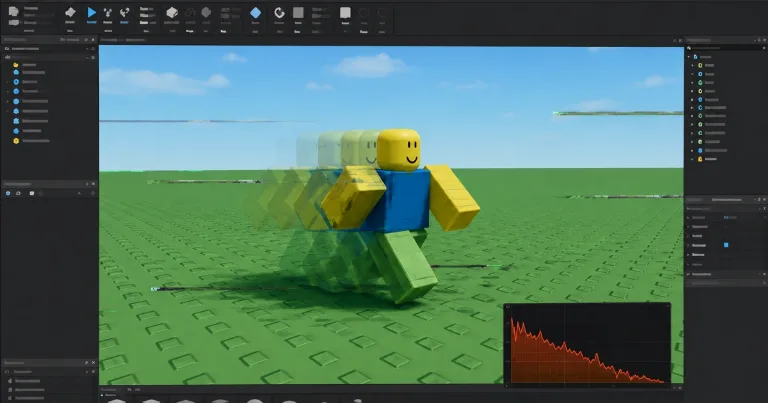

I know, right? Roblox Studio dropping to 5 or 15 FPS is one of those old, annoying problems that can make even an empty Baseplate feel heavy. The difficult part is that low FPS does not have one cause. An NVIDIA frame limit may be responsible on one computer, while another needs a different renderer. Start with the checks below in order so you do not waste time reinstalling Studio or changing your project.
Start with NVIDIA and external frame limits
Open a new empty Baseplate before changing anything. If it also runs at a low but stable frame rate, the problem is less likely to come from your scripts, models or plugins.
An outside frame limit is more likely when:
Studio stays around the same low FPS.
Lowering graphics quality barely helps.
Menus, scrolling and the viewport all feel slow.
Roblox Player runs normally.
Studio works normally for a few seconds before slowing down.
If only one project is affected, check that project’s scripts, plugins, lighting, meshes and other assets instead.
Turn off NVIDIA Max Frame Rate
This is the first fix to try when your computer has an NVIDIA graphics card.
Close Roblox Studio.
Open NVIDIA Control Panel.
Select Manage 3D Settings.
Open the Program Settings tab.
Select Roblox Studio from the program list.
If it is missing, click Add or Browse and select
RobloxStudioBeta.exe.Find Max Frame Rate.
Set it to Off.
Click Apply, then reopen Roblox Studio.
The important part is setting Max Frame Rate completely to Off. Leaving it on Use global setting may not fix the problem, even when the global limit is high. Setting another custom limit may also leave Studio running at only part of that number.
Make sure you change Max Frame Rate, not Background Application Max Frame Rate. They are separate settings.
Use Program Settings instead of Global Settings when possible. This removes the limit only from Roblox Studio and keeps your other game settings unchanged.
Roblox Studio installs inside a versioned folder, so NVIDIA Control Panel may lose the correct program after a Studio update. If the low FPS returns, remove the old Studio profile and add the current RobloxStudioBeta.exe again.
Check the OpenGL rendering GPU
This is an optional check for computers with integrated graphics and a dedicated NVIDIA GPU.
In the same Roblox Studio Program Settings page, find OpenGL rendering GPU and select your main NVIDIA graphics card.
This setting mainly affects programs using OpenGL. It is more useful when Roblox Studio’s Graphics Mode is set to OpenGL, so do not expect it to fix Direct3D11 or Vulkan problems by itself.
You can also make sure Windows gives Studio the faster GPU:
Open Windows Settings.
Go to System > Display > Graphics.
Add or select
RobloxStudioBeta.exe.Click Options.
Select High performance.
Save the change and restart Studio.
Close RivaTuner Statistics Server
Skip this step if you do not have RivaTuner Statistics Server or MSI Afterburner installed.
RivaTuner Statistics Server, usually called RTSS, is external software. It does not come with Roblox Studio, Windows or the NVIDIA driver. People often install it with MSI Afterburner to show FPS, temperatures and other performance information.
Look for the RTSS monitor icon in the Windows system tray. Right-click it, close the program completely and reopen Roblox Studio.
Closing the MSI Afterburner window may not close RTSS, so check the system tray separately.
If Studio returns to its normal frame rate, keep RTSS closed while using Studio or create a profile that does not limit RobloxStudioBeta.exe.
Try another Studio renderer
If disabling the NVIDIA limiter and closing RTSS do not help, test another Graphics Mode. One renderer may run badly on a system that handles another renderer without any problem.
Test Vulkan
Open Roblox Studio.
Select File > Studio Settings.
Open Rendering.
Find Graphics Mode.
Change it to Vulkan.
Restart Studio.
Open a new Baseplate and check the FPS again.
Vulkan can fix the low frame rate immediately on some computers, especially when the problem appears under Direct3D11.
Do not assume Vulkan will always be better. If textures fail to load, Studio becomes unstable or performance gets worse, return to Direct3D11 or Automatic and restart Studio again.
Change one setting at a time. If you change the frame limiter, renderer and laptop power mode together, you will not know which setting fixed the problem.
Check G-SYNC when window focus changes the FPS
G-SYNC is worth testing when Studio becomes slow only while its window is selected.
Matching signs include:
The FPS changes when you click another window.
Menus or scrolling begin to jitter while Studio is focused.
Studio feels better during Play testing than Edit Mode.
The viewport becomes slow without a clear project-related cause.
Open NVIDIA Control Panel and try one of these options:
Go to Display > Set up G-SYNC and enable it for full-screen mode only.
Go to Manage 3D Settings > Program Settings and select Roblox Studio.
Change Monitor Technology to Fixed Refresh Rate.
Temporarily disable G-SYNC and test Studio again.
Restore your original setting if the FPS does not change.
Use the remaining checks if FPS stays low
The frame limiter and renderer checks are the strongest starting points. Continue with the steps below when a new Baseplate is still running badly.
Remove laptop power limits
A gaming laptop can restrict the graphics card before Roblox Studio gets a chance to use it.
Before testing again:
Connect the charger.
Turn off Windows Battery Saver.
Change Silent or Eco mode to the normal Performance mode.
Temporarily disable NVIDIA WhisperMode.
Temporarily disable NVIDIA Battery Boost.
Restart Roblox Studio after changing the power mode.
The exact setting names depend on the laptop brand. Check apps such as Armoury Crate, Lenovo Vantage, MSI Center, Alienware Command Center or the control software included with your laptop.
WhisperMode and Battery Boost may intentionally limit frame rates to reduce heat, fan noise or battery use.
Reset Studio and confirm the active graphics card
Resetting Studio can remove a bad graphics or editor setting.
Open File > Studio Settings.
Click Reset All Settings in the lower-left corner.
Close Roblox Studio.
Reopen it and test a new Baseplate.
This also resets your personal Studio preferences, so you may need to restore some editor settings afterward.
Next, check which graphics card Studio detects:
Open Studio Settings.
Select Diagnostics.
Find the line named GfxCard.
If a laptop lists the integrated Intel or AMD GPU when you expected NVIDIA, set Roblox Studio to High performance under:
Windows Settings > System > Display > Graphics
Restart Studio after saving the change.
Update both graphics drivers
A hybrid laptop may use an Intel or AMD integrated GPU for the display while NVIDIA handles heavier graphics work. Updating only the NVIDIA driver may leave the other part of the setup outdated.
Update both:
The NVIDIA graphics driver.
The Intel or AMD integrated graphics driver.
Download the drivers from NVIDIA, Intel, AMD or your laptop manufacturer. Avoid random driver download websites.
Restart the computer after installing the drivers, then test Studio before changing more settings.
Reinstall Roblox Studio only after trying the steps above. Reinstalling can replace damaged Studio files, but it will not remove a frame limit applied by NVIDIA Control Panel, RTSS, G-SYNC or laptop power software.
If the FPS is still low, note the exact frame rate, selected Graphics Mode, GfxCard result and whether the same problem happens in an empty Baseplate. Those details make it easier to separate a Studio or driver problem from a demanding project.