



If Apple TV shows "An Error Occurred. Please try again." after you press play in a browser, check the country code in the URL before changing browser settings. I ran into this while trying to watch Silo from the Philippines. The page opened with the US path, and changing /us/ to /ph/ fixed playback.
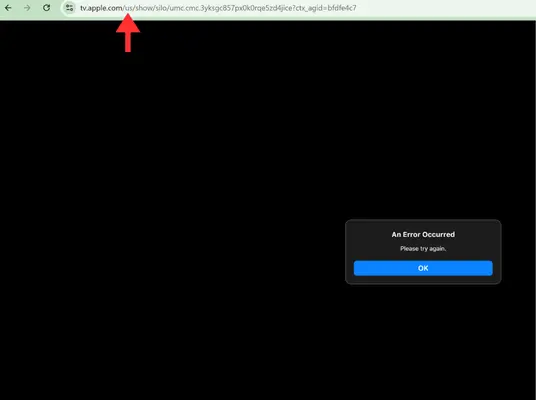
Change the country code in the URL
Look at the address bar while the error is open. Apple TV web links can include a two-letter region code immediately after tv.apple.com. My link used the US path even though I was watching in the Philippines.
US path: tv.apple.com/us/show/silo/umc.cmc.3yksgc857px0k0rqe5zd4jice
Philippines path: tv.apple.com/ph/show/silo/umc.cmc.3yksgc857px0k0rqe5zd4jice
Edit only the two-letter region part, press Enter, and try the video again. Leave the show name and content ID unchanged. For example, Canada normally uses /ca/, Australia uses /au/, and India uses /in/.
Start with the region connected to your Apple account or storefront. That may not always match your current location, especially if the account was created in another country. You can also open the Apple TV homepage, choose the correct country or region, and return to the title from there. Apple's media-service availability list shows which Apple TV services are offered in each country or region.
If the URL already uses the right region
The same message can appear for a different reason. Try these checks in order:
- Sign out of Apple TV, close the browser, reopen it, and sign in again.
- Open the page in a private or incognito window.
- Disable ad blockers or privacy extensions for
tv.apple.com. - If you use Chrome, clear the cache, cookies, and site data for Apple websites without wiping data for every other site.
- Try another browser, or check whether a different Apple TV title plays.
In my case, the browser and internet connection were fine. The wrong regional path was the whole problem. After the URL used /ph/, Silo played normally. Bookmarking the corrected page can also stop Apple TV from reopening the wrong regional version.