



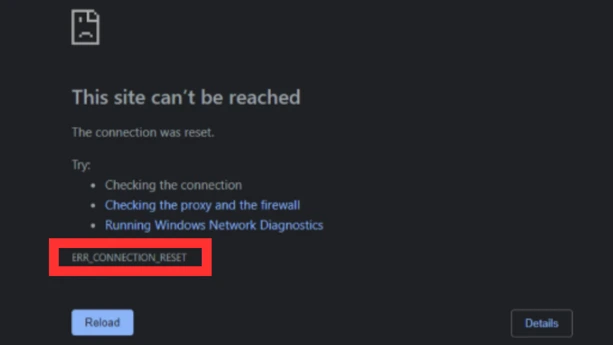
ERR_CONNECTION_RESET in Chrome means the browser tried to connect to a website, but the connection was cut before the page could load. Most of the time, it is caused by your network, VPN, proxy, DNS, firewall, browser data, or the website's own server, which also matches Google's Chrome connection and loading error guide.
Check the easy causes first
Start with the fixes that do not change much on your PC.
Refresh the page first. If only one site fails, open another website to check if your internet is working. You can also try the same page in another browser or on your phone. If the page fails everywhere, the site may be down or your network may be blocking it.
Restart your router and PC next. Unplug the router for about 30 seconds, plug it back in, then restart your computer. This clears small network issues that can cause Chrome to drop the connection.
If you use a VPN, proxy, antivirus web shield, or custom firewall, turn it off for a short test. Do not leave your protection off. The goal is only to check if something is blocking that site. If the page works after disabling one of them, add the site as an exception or change the VPN server.
Clean Chrome and test extensions
Old or damaged browser data can also trigger this error, especially if the problem happens on only one website.
In Chrome, go to the three-dot menu > Delete browsing data. Set the time range to All time, then clear Cookies and other site data and Cached images and files. Restart Chrome and try the site again.
If it still fails, test your extensions. Type chrome://extensions/ in the address bar, turn off all extensions, then reload the page. If the site works, turn extensions back on one by one. Ad blockers, privacy tools, download helpers, and VPN extensions are common suspects.
Also check for a Chrome update. Go to the three-dot menu > Help > About Google Chrome. Chrome usually updates automatically, but this page forces it to check. Relaunch the browser if it asks.
Reset the network if the error stays
If Chrome still shows ERR_CONNECTION_RESET after the basic checks, reset the connection settings on Windows.
Open Command Prompt as administrator, then run these commands one at a time:
netsh winsock reset
netsh int ip reset
ipconfig /release
ipconfig /renew
ipconfig /flushdns
Restart your PC after running them. These commands reset the Windows network stack, renew your local IP address, and clear the DNS cache.
You can also use the built-in Windows Network reset option. On Windows 11, go to Settings > Network & internet > Advanced network settings > Network reset. This reinstalls network adapters and puts network settings back to default, so you may need to set up VPN apps or virtual adapters again.
Changing DNS can help if your ISP's DNS is slow or failing. Use only one provider at a time:
| DNS provider | Preferred DNS | Alternate DNS |
|---|---|---|
| Google Public DNS | 8.8.8.8 | 8.8.4.4 |
| Cloudflare DNS | 1.1.1.1 | 1.0.0.1 |
After changing DNS, disconnect and reconnect your Wi-Fi or Ethernet. If you are on Wi-Fi, test with an Ethernet cable if possible. That helps you check if the problem is your wireless signal instead of Chrome.
If ERR_CONNECTION_RESET happens on many sites, on different browsers, and on more than one device, contact your ISP. At that point, the issue may be outside your computer, especially if your router restart and Windows network reset did not help.