

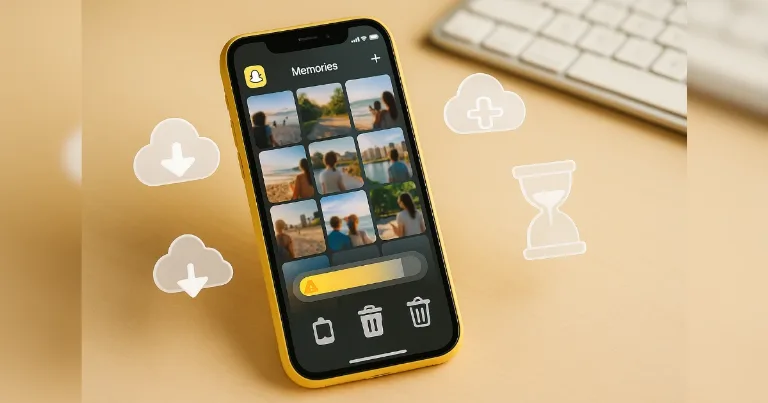

Snapchat now limits free Memories storage to 5 GB. If you've been saving Snaps for years, you might already be over that limit. The good news is that Snapchat won't automatically delete your Memories just because you don't pay. However, changes coming in January 2027 could affect how you access older photos and videos.
What Happens If You Go Over 5 GB?
Snapchat originally announced 12 months of temporary storage for users exceeding the free limit. Its current storage policy now explains what happens next.
Starting in January 2027, Snapchat will begin archiving certain older Memories rather than deleting them.
Here's how it works:
Oldest 5 GB: Your oldest saved Memories remain accessible.
Memories from the past year: You can continue accessing them.
Older Memories beyond the oldest 5 GB: These may be archived if they're more than one year old.
Archived Memories will still appear as thumbnails, but you'll need a paid storage plan to open, edit, or share them inside Snapchat. You can also download your Memories to access them outside the app.
Snapchat says users will receive advance notice before archiving begins. So there's no need to panic, but it's worth checking how much storage you're using.
How to Check Your Storage and Choose a Plan
To see how much space your Memories are taking up:
Open Snapchat and go to your Profile.
Tap the Settings gear icon.
Scroll down to My App and select Memories.
Look under Cloud Storage to see your usage.
If you're over the free limit, Snapchat may show an Upgrade Storage banner in Memories. If you don't see it yet, Snapchat says your current storage will remain unchanged until the upgrade options become available to you.
Snapchat Memories storage plans
| Plan | Storage |
|---|---|
| Free | 5 GB |
| Memories-only | 100 GB |
| Snapchat+ | 250 GB |
| Lens+ | 250 GB |
| Snapchat+ Platinum | 5 TB |
The 100 GB Memories-only plan costs $1.99 per month or $20 per year in the US. Other subscription prices vary by country and plan, so check the app before paying.
If you cancel a paid plan while over the free limit, Snapchat will show your available storage options. Its current policy does not specify an automatic 48-hour deletion deadline.
You don't have to subscribe, though. Downloading your Memories is another option if you'd rather keep your photos and videos somewhere else.
How to Download and Back Up Your Memories
If you have thousands of saved Snaps, downloading them through Snapchat's account portal is easier than selecting everything manually.
Download all your Memories
Visit Snapchat's Accounts Portal and sign in.
Select My Data.
Enable Export your Memories.
Click Request Only Memories.
Select your date range, or include everything.
Confirm your email and submit the request.
Snapchat will notify you when the export is ready. Download the ZIP file, extract it, and open index.html in your browser. Select Memories to download individual files or all of them.
Using a computer is recommended, especially if you have a large collection.
Save individual Snaps
If you only want certain photos or videos:
Open Snapchat and swipe up from the Camera screen.
Press and hold the Snap you want.
Tap Export.
Choose where to save it.
You can also select multiple Snaps and export them together.
Once you've downloaded everything, check that the files actually open. Keeping another copy on your computer, an external drive, or a cloud storage service is a good idea.
Do You Need to Pay for Snapchat Memories?
Not necessarily. If your Memories fit within the free limit, you can keep using Snapchat without upgrading.
If you're over it, the decision comes down to where you want your photos stored. A subscription keeps your older Memories accessible inside Snapchat, while downloading them gives you copies you can keep without paying Snapchat for extra storage.
Just don't confuse archiving with deletion. Snapchat says your older Memories will remain stored, even if some become inaccessible inside the app without an upgrade.