
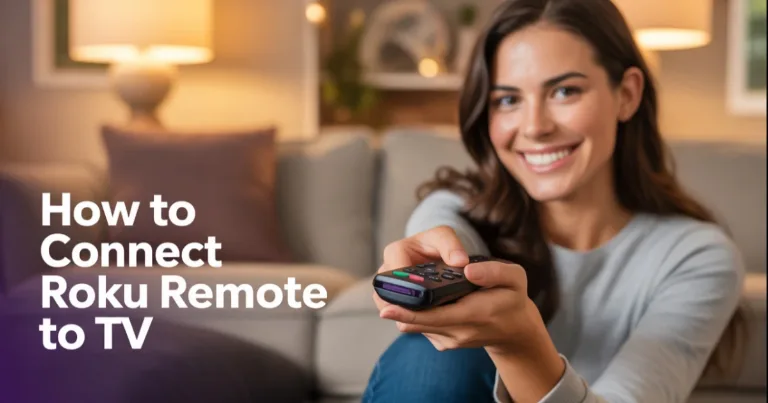

Connecting a Roku remote depends on the type you have. A simple remote starts working after you add batteries, while a voice remote needs to be paired. Power and volume may also need a separate setup, even when the remote already controls the Roku menu.
Before you start, look near the purple direction pad.
A microphone or magnifying-glass button means you have a Roku voice remote.
If there is no voice button, you have a Roku simple remote.
Connect a Roku Simple or Voice Remote
Roku simple remote
A simple remote does not need pairing.
- Insert fresh matching batteries.
- Point the remote at the Roku player or Roku TV.
- Press Home or one of the arrow buttons.
Simple remotes use infrared, so they need to face the Roku device while you use them. Move anything blocking the front of the player or TV.
There is no pairing button or button combination to press. If a replacement simple remote still does not respond, check that it supports your Roku model.
Roku voice remote with a pairing button
Check inside the battery compartment or on the back of the remote for a small pairing button.
- Turn on the Roku device.
- Hold the pairing button for five seconds.
- Release it when the status light starts flashing.
- Wait for the pairing message to appear on the TV.
Charge a rechargeable voice remote first if its status light does not turn on.
If pairing does not start, unplug the Roku device for at least five seconds. Plug it back in, wait for the Home screen, and hold the pairing button again.
Roku voice remote without a pairing button
Some Roku voice remotes use the Back and Home buttons instead of a separate pairing button.
- Turn on the Roku device.
- Hold Back and Home together for five seconds.
- Release both buttons when the status light flashes.
- Wait for Roku to finish pairing.
Back is the left-facing arrow near the top of the remote. Home is the button with the house icon.
Use this method only when the remote has a microphone or magnifying-glass button. A simple remote cannot be paired with Back and Home.
Replacement or second voice remote
When another remote or the Roku mobile app already works, open:
Settings > Remotes & devices > Add devices > Remote > Continue
Follow the instructions on the TV, then put the replacement remote into pairing mode.
Make sure the replacement supports your Roku TV or streaming player. A remote can look almost identical to your old one and still be made for a different type of Roku device.
Set Up Power and Volume
Pairing connects the remote to Roku. It does not always set up the power, volume, and mute buttons for your television.
If Home and the arrow buttons work but the TV buttons do not, open:
Settings > Remotes & devices > Remotes > select your remote > Set up remote for TV control
Turn up the TV volume before starting. Roku will play music while it checks which control setting works with your television. Follow the questions shown on the screen.
Point the remote at the TV during this test. The remote connects wirelessly to Roku, but its power and volume buttons may use infrared.
The buttons that still respond can help you find the problem:
- Home and the arrows work, but power or volume does not: The remote is already paired. Run the TV-control setup again.
- Power and volume work, but Home and the arrows do not: The remote can control the television but has lost its Roku pairing. Pair the voice remote again.
- Volume works, but power does not: Check for a Roku software update, then repeat the TV-control setup. Your television may also need HDMI-CEC enabled.
- Nothing works: Check the batteries or charge level, then confirm that the remote supports your Roku model.
Do not keep pairing the remote when only the TV buttons have failed. Pairing and TV control are separate, so repeating the wrong setup will not fix the missing buttons.
If the Roku player connects through a soundbar or AV receiver, temporarily connect it directly to the TV and run the TV-control setup again. You can reconnect the other equipment afterward.
Use the Roku Mobile App
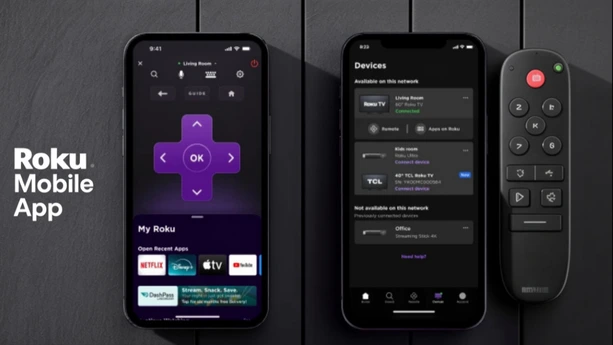
The Roku mobile app can control your Roku when the physical remote is missing. It can also help you open the menu for pairing a replacement voice remote.
- Install the official Roku mobile app.
- Connect the phone to the same Wi-Fi network as Roku.
- Open the app and select your Roku device.
- Tap Remote.
You can then open:
Settings > Remotes & devices > Add devices > Remote
The app only works when the phone and Roku can reach each other on the same network. It may not find a Roku that is offline, connected to an old router, or waiting on its first setup screen.
When Roku does not appear in the app, check the following:
- Turn off any VPN on the phone.
- Make sure the phone is not using mobile data or guest Wi-Fi.
- Allow local-network access for the Roku app on an iPhone or iPad.
- Restart the Roku device and reopen the app.
- Check Settings > System > Advanced system settings > Control by mobile apps.
A changed Wi-Fi name or password creates another problem. The Roku may still be looking for the old network while the phone is connected to the new one. A compatible physical remote is usually the easiest way to reconnect it.
An Ethernet cable may also help when the Roku device has an Ethernet port. Connect it to the router, open the mobile app, and use the app to change the network under Settings > Network > Set up connection.
Do not factory-reset Roku just because the remote is missing. A reset removes the saved network settings. The mobile app may then be unable to find Roku until the first setup is completed with a working physical remote.
Pair the remote again when Home and the arrow buttons fail. When Roku navigation works but power or volume does not, leave the pairing alone and repeat the TV-control setup.